SEO Suite guide
Send a report that support can reproduce
A useful ticket explains one problem, on one site, with the expected and actual result. You do not need a long technical report.
Gather the essentials
- The affected site URL and page URL, when relevant.
- Your plugin edition and version, WordPress version, and the exact error text.
- The steps you followed, what you expected, and what happened instead.
- A cropped screenshot if it explains the issue more clearly.
Open the ticket
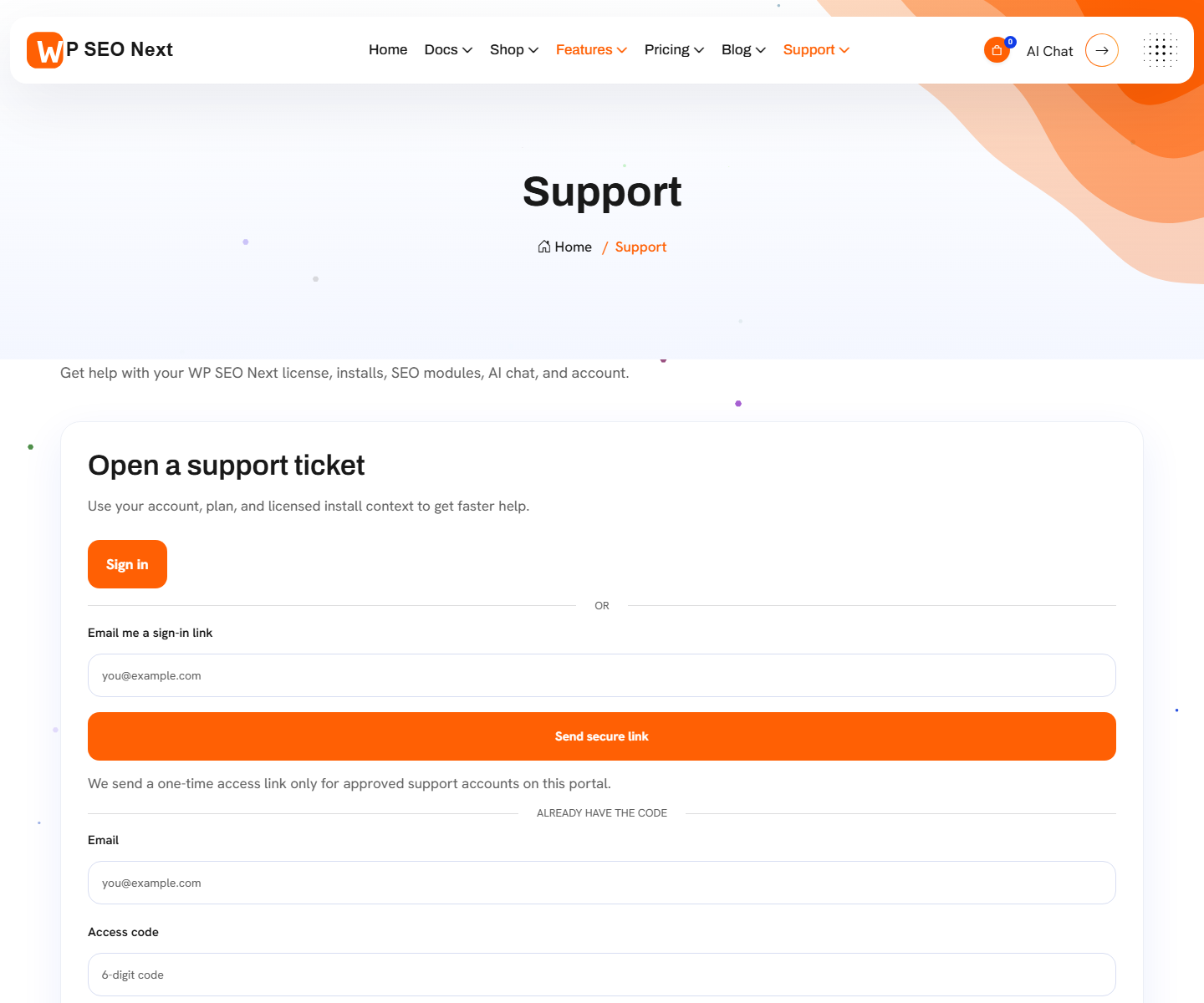
- Open the support center and sign in with the purchase or support email.
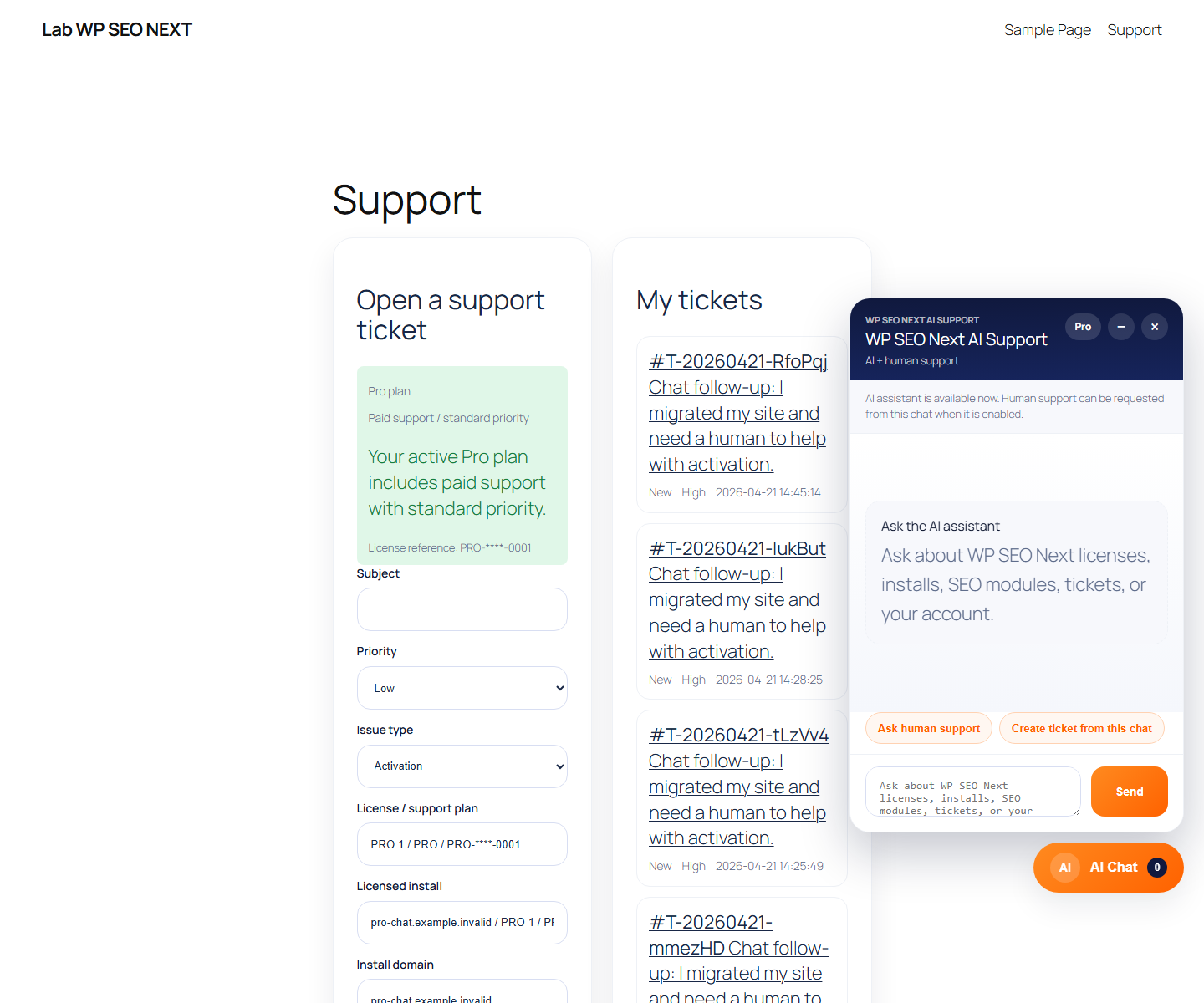
- Select the correct site or license context when the form offers it.
- Write a specific subject and describe one issue.
- Review attachments for private data before submitting.
- Keep follow-up replies in the same ticket so the history stays together.
If you cannot sign in, use the account-help links on the login page or the support email shown in the footer. Do not create duplicate tickets to bypass an access problem.
Example report
Subject: Product page still shows the old meta description
Steps: I opened the product, changed its SEO description, saved it, and opened the public URL in a private window.
Expected: the saved description appears in the page source.
Actual: the old description is still present. I have cleared the page cache. The affected URL and plugin version are attached.
Keep secrets out
Do not send passwords, full license keys, API keys, payment-card details, or unredacted logs. A screenshot should show the error, not private customer information.
Result: a ticket with enough context to investigate. Track the reply in your account; opening a ticket is not a guarantee of an immediate response.
Reference screenshots
These reference images may show an earlier interface. Screen names and available tools depend on your installed version and edition.