SEO Suite guide
Use chat for guidance, tickets for investigation
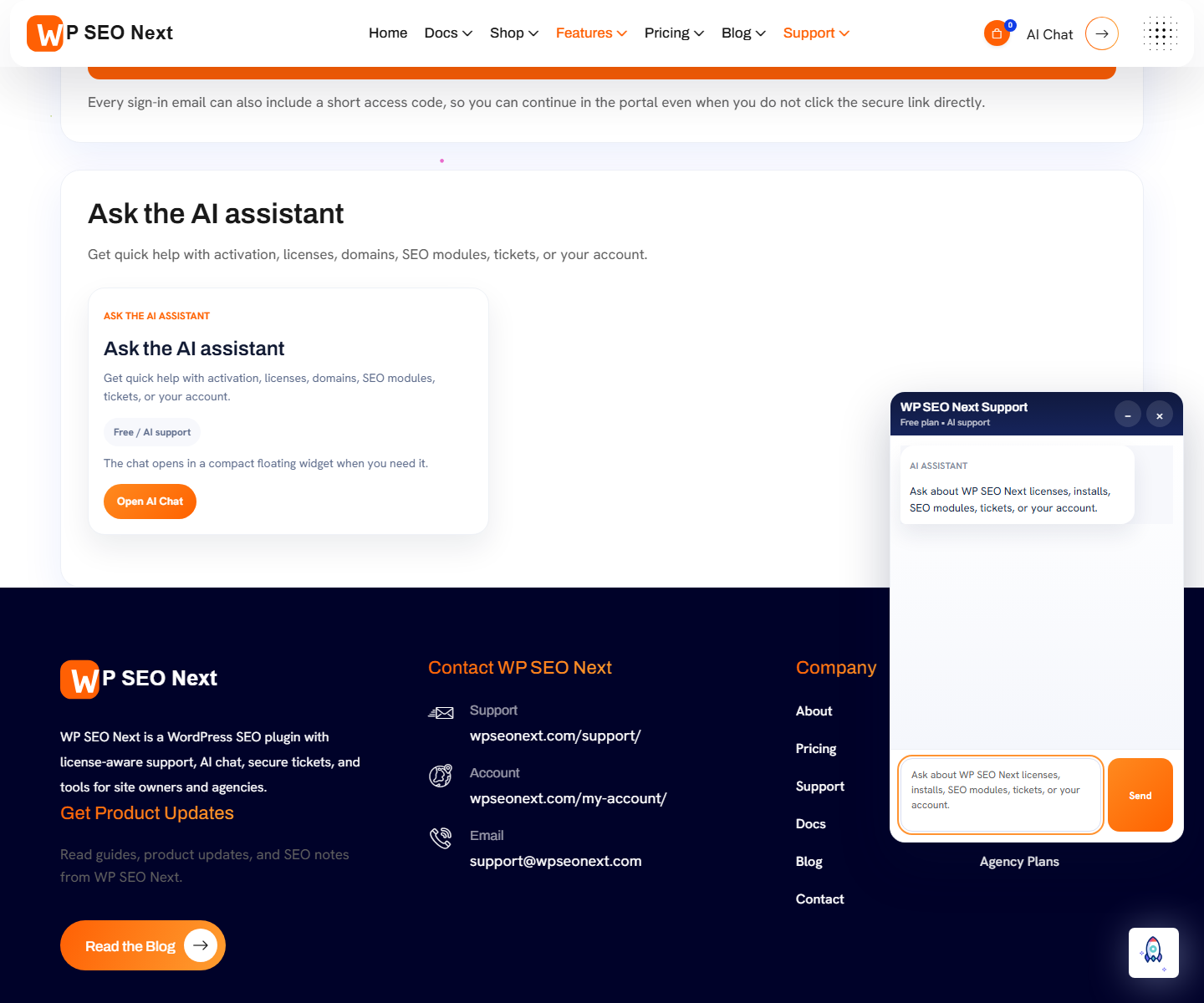
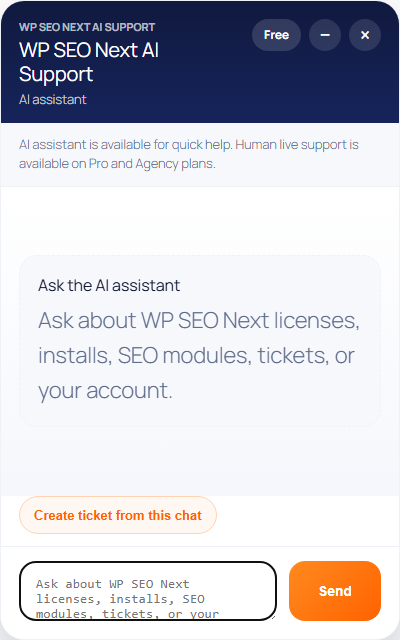
The website's AI assistant helps explain SEO Suite settings, warnings, and next steps. It is separate from optional AI integrations inside the plugin and is not proof that every edition includes an external AI service.
Ask a specific product question
Open AI Chat and include the screen name, your edition, and what you want to achieve. Share the exact warning, without private information.
Example: ‘I am using Free. A page shows a missing meta description warning. Where should I add the description, and how can I check that it was saved?’
Ask for one next action and how to verify it. This is more useful than ‘Fix my SEO’.
Review the answer before acting
AI answers can be incomplete or incorrect. Check the linked guide and the controls visible in your installed version. Keep a copy of an existing setting before changing it, and use staging for changes that affect many pages.
The assistant cannot guarantee rankings, confirm a refund, or prove that a site-specific fault has been fixed just by describing a solution.
When to switch to a ticket
Use a ticket for billing, missing paid access, repeatable errors, or a problem that persists after the suggested checks. Include the steps already tried so support does not start from zero.
Available support options depend on the account and current plan. Check the support portal rather than assuming a response-time guarantee.
Never paste passwords, API keys, complete license keys, or private customer data into chat.
Next step
Ask a product question or use the ticket checklist for an issue that needs investigation.
Reference screenshots
These reference images may show an earlier interface. Screen names and available tools depend on your installed version and edition.